1Take Support
Support page for 1Take - Audio Recording App for Musicians
1Take User Manual
Welcome to 1Take, the professional audio recording app designed for musicians. This manual will guide you through all features and help you get the most out of your recordings.
Table of Contents
- Getting Started
- Recording Basics
- Recording Analysis
- Presets
- Signal Processing Chain
- Pre-roll Recording
- Auto-Record
- Meters
- Markers
- Recordings Library
- Settings
- Pro Features
Getting Started
First Launch
When you first open 1Take, you’ll be asked to grant microphone access. This is required for the app to record audio.
Main Screen Overview
The main screen consists of:
- Level Meter: Shows real-time audio levels (tap to switch between VU/GR/Spectrum/LUFS)
- Record Button: Start/stop recording (center)
- TRIM Knob: Adjust input gain (left)
- THRESH Knob: Adjust gate threshold (right)
- Preset Selector: Choose your sound profile (top)
Recording Basics
Starting a Recording
- Tap the Record button to start recording
- The button turns red and a timer appears
- Tap again to stop and save
Adding Markers
During recording, tap the Marker button to add a user marker at the current position. This helps you find important moments later.
Recording Stopped Alert
When you stop recording, an alert shows:
- Duration: Total recording length
- Integrity: Percentage of audio data successfully captured (aim for 100%)
Recording Analysis
1Take v1.3.0 introduces automatic recording quality analysis using broadcast-standard algorithms (ITU-R BS.1770-4).
What Gets Analyzed
After each recording, 1Take automatically evaluates:
- Peak Level (dBFS): Maximum sample value (-6 to -12 dBFS is ideal)
- RMS Level (dBFS): Average loudness over time
- Crest Factor (dB): Dynamic range (Peak minus RMS)
- LUFS: Perceived loudness (target -14 to -16 LUFS for streaming)
- True Peak (dBTP): Inter-sample peak level (keep below -1 dBTP)
- Loudness Range (LRA): Statistical loudness variation
How to Use
Recording analysis runs automatically when you stop recording. The results help you:
- Identify clipping issues - If True Peak exceeds -1 dBTP
- Check loudness - Compare Integrated LUFS to streaming standards
- Evaluate dynamics - Crest Factor shows compression amount
- Improve technique - Consistent results indicate good mic technique
Reference Values
| Metric | Good Range | Notes |
|---|---|---|
| Peak | -12 to -6 dBFS | Leave headroom |
| LUFS | -16 to -14 LUFS | Streaming standard |
| True Peak | Below -1 dBTP | Prevents clipping |
| Crest Factor | 8-14 dB | Balanced dynamics |
Presets
1Take includes three carefully crafted presets modeled after legendary audio gear:
Studio (LA-2A Style)
- Best for: Vocals, acoustic guitar, podcasts
- Character: Warm, smooth compression with tube-like qualities
- Stereo Spread: OFF
Studio+ (1176 Style)
- Best for: Drums, electric guitar, energetic performances
- Character: Punchy, aggressive compression with fast attack
- Stereo Spread: OFF
Live (VCA Style)
- Best for: Live performances, loud rehearsals
- Character: Clean, transparent compression that won’t distort
- Stereo Spread: ON (enhanced width)
Customizing Presets (Pro)
Pro users can customize each preset’s parameters including Gate, EQ, Compressors, Saturation, Stereo Spread, and Maximizer.
Signal Processing Chain
1Take processes audio through a professional signal chain in real-time:
Input → Trim → Gate → EQ → Comp A → Comp B → Saturation → Stereo → Maximizer → Output
Input Trim
Adjusts digital gain before processing. Use the TRIM knob on the main screen.
Noise Gate
Cuts background noise between phrases. Adjust threshold with the THRESH knob.
5-Band Parametric EQ
Shape your tone with five fully adjustable bands. Each band provides:
- Frequency: Center frequency selection
- Gain: Boost or cut (±12 dB)
- Q: Bandwidth control (narrow to wide)
The visual frequency response curve shows your EQ settings with draggable control points.
2-Stage Compressor
- Comp A: Fast compressor for catching peaks
- Comp B: Slower compressor for adding density and “glue”
Saturation
Adds subtle harmonic warmth (analog-style distortion).
Stereo Spread
Enhances stereo width for a wider sound image.
Maximizer
Final stage limiter that prevents digital clipping. Ceiling fixed at -1.0 dBFS for safety.
Pre-roll Recording
Never miss a great take again! Pre-roll continuously buffers audio so you can capture moments that happened before you pressed record.
How It Works
- Enable Pre-roll in Settings
- Set your desired duration (5-30 seconds, extended with Pro)
- When you start recording, the buffer is included
Example Use Case
You’re jamming and play something amazing. Even if you press record 10 seconds later, Pre-roll captures those 10 seconds!
Auto-Record
Auto-Record automatically starts and stops recording based on audio levels.
Intelligent Calibration (New in v1.3.0)
1Take v1.3.0 introduces automatic threshold calibration:
- Tap the Auto button in Auto-Record settings
- 1Take measures your ambient noise floor
- Thresholds are automatically calculated with optimal margins
- Hysteresis control prevents false triggers
This makes setup effortless - just tap Auto in a quiet moment before you play!
Manual Setup
- Go to Settings → Auto-Record
- Enable Auto-Record
- Set Start Threshold: Level that triggers recording start
- Set Stop Threshold: Level below which recording stops
- Set Duration: How long silence must continue before stopping
How to Use
- Long-press the Record button to enter Auto-Record mode
- The “AUTO” badge appears
- Recording starts automatically when sound is detected
- Recording stops after the specified silence duration
- Tap the Record button to exit Auto-Record mode
Meters
Tap the meter display to cycle through four meter modes:
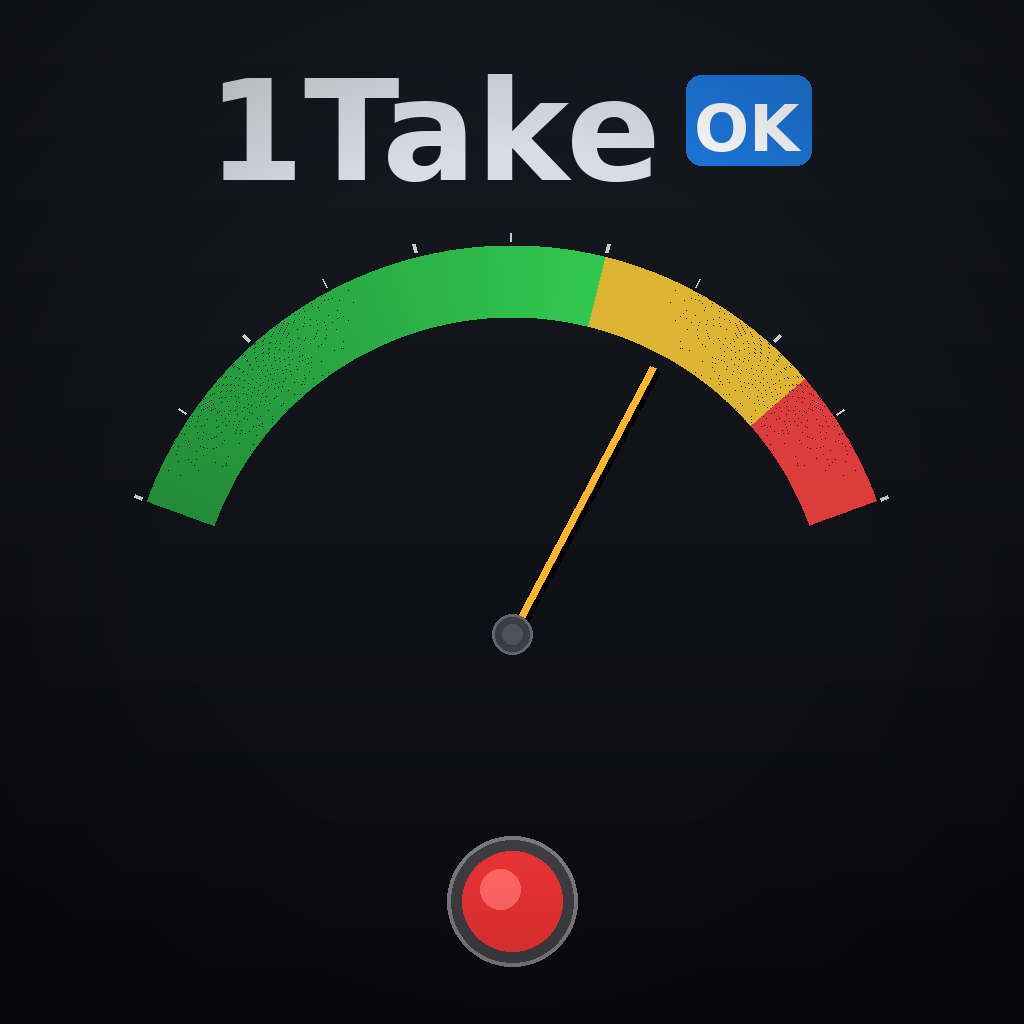
VU Meter
Classic analog-style meter with 300ms time constant. The needle shows average level, with peak hold indicator.
- Green zone: Safe levels
- Yellow zone: Getting hot
- Red zone: Near clipping
GR (Gain Reduction) Meter
Shows how much compression is being applied.
- Left meter: Comp A gain reduction
- Right meter: Comp B gain reduction
Spectrum Analyzer
Real-time frequency display showing the spectral content of your audio.
LUFS Meter
Professional loudness meter following ITU-R BS.1770-4 standard.
- Needle: Momentary loudness (400ms)
- Cyan marker: Short-term loudness (3s)
- Yellow marker: Integrated loudness (entire recording)
- TP (True Peak): Inter-sample peak level
Reference levels:
- -24 LUFS: Broadcast standard (EBU R128, Japanese broadcast)
- -14 LUFS: Streaming standard (Spotify, YouTube, Apple Music)
Markers
1Take supports automatic markers to help you identify important moments:
User Markers
Manually added by tapping the Marker button during recording. Use these to mark important moments.
Clip Markers (CLIP)
Automatically added when audio clips (exceeds 0 dBFS). These help you find potential distortion areas.
Over Markers (OVER)
Automatically added when True Peak exceeds -1 dBTP. Indicates inter-sample peaks that may cause issues in playback.
Buffer Drop Markers (💔)
Automatically added if audio data is lost due to system performance issues. Indicates potential quality problems.
Recordings Library
Access your recordings by tapping the list icon.
Recording Info
Each recording shows:
- Title (tap to rename)
- Duration
- Date/Time
- FX preset used
- Audio integrity percentage
- Marker counts
Playback
Tap a recording to play. The waveform view shows your markers for easy navigation.
Export
Share your recordings in various formats. Pro users can export in BWF and 24-bit formats.
Settings
Performance
Buffer Size: Controls audio processing latency vs. stability tradeoff.
- Smaller (512-1024): Lower latency, higher CPU usage
- Larger (2048-4096): Higher latency, more stable
Recommended: 4096 for most users
File Format
- WAV (16-bit): Standard quality, smaller files
- WAV (24-bit): Higher quality, larger files (Pro)
- BWF (16-bit): Broadcast Wave with timecode (Pro)
- BWF (24-bit): Professional format for DAW integration (Pro)
Pre-roll
Set the pre-roll buffer duration. Pro users can extend up to 30 seconds.
Auto-Record
Configure automatic recording triggers. Use the Auto button for intelligent calibration.
Keep Screen On (New in v1.3.0)
Enable this option to prevent your device from sleeping during long recording sessions. Useful for extended practice or live recording scenarios.
Pro Features
Upgrade to Pro to unlock:
Extended Pre-roll
Increase pre-roll buffer from 10 to 30 seconds.
Custom Presets
Full access to adjust all parameters for each preset.
BWF Format
Broadcast Wave Format with embedded timecode for seamless DAW integration.
24-bit Recording
Higher bit depth for professional post-production workflows.
Tips & Tricks
For Best Recording Quality
- Set proper levels: Aim for peaks around -12 to -6 dB on the VU meter
- Use Pre-roll: Keep it enabled so you never miss spontaneous moments
- Choose the right preset: Match your source material to the preset character
- Monitor with headphones: Use wired headphones to hear the processed sound
Troubleshooting
Audio integrity below 100%
- Increase buffer size in Settings
- Close other apps
- Avoid recording during intensive background tasks
Sound is distorted
- Lower the Input Trim
- The Maximizer will prevent digital clipping, but extreme input levels can cause analog-style distortion from the Saturation stage
Recording won’t start
- Check microphone permissions in iOS Settings
- Ensure no other app is using the microphone
Support
Need help? Visit our Support Page or contact us through the app.
1Take - Record with confidence.